A Step-by-Step Guide to Setting Up the AI Agent, Preparing Your Profile, and Managing Your First Conversations
Google shut down its Business Profile chat feature in July 2024. As of October 2026, it is back, rebuilt on AI and RCS technology, and rolling out to business owners by invitation.This guide walks you through every step: from checking whether you have access, to setting up the AI agent, to managing your first customer conversations.
→ Google Support: How to Activate AI-Powered Messaging on Your Google Business Profile (Official)
→ Search Engine Roundtable : Google Business Profiles AI-Powered Messaging Expands (October 2026)
A client called me last week. They had just received an email from Google.
'Early access to AI-powered messaging for your Business Profile.'
'Is this real? Should I turn it on?'
Yes, it is real. And before you tap accept, there is a specific sequence of steps that determines whether the AI represents your business accurately or creates confusion with every customer message.
I have broken the entire process into 8 steps. Follow them in order.
Key Takeaways
→ The AI messaging pilot launched in June 2026. As of October 2026, it is expanding to more businesses by invitation (currently US-first).
→ The AI answers from your profile data only. It has no separate brain. If your hours or services are wrong, your AI gives wrong answers.
→ The feature runs on RCS. Customers on RCS-compatible phones get the AI agent. Everyone else gets a standard SMS that lands on your phone directly.
→ You need a live privacy policy and terms of service page on your website before you can complete sign-up. Set these up first.
→ Run test messages before going live. This is the step most businesses skip. Do not skip it.
What Is Google Business Profile AI Messaging?
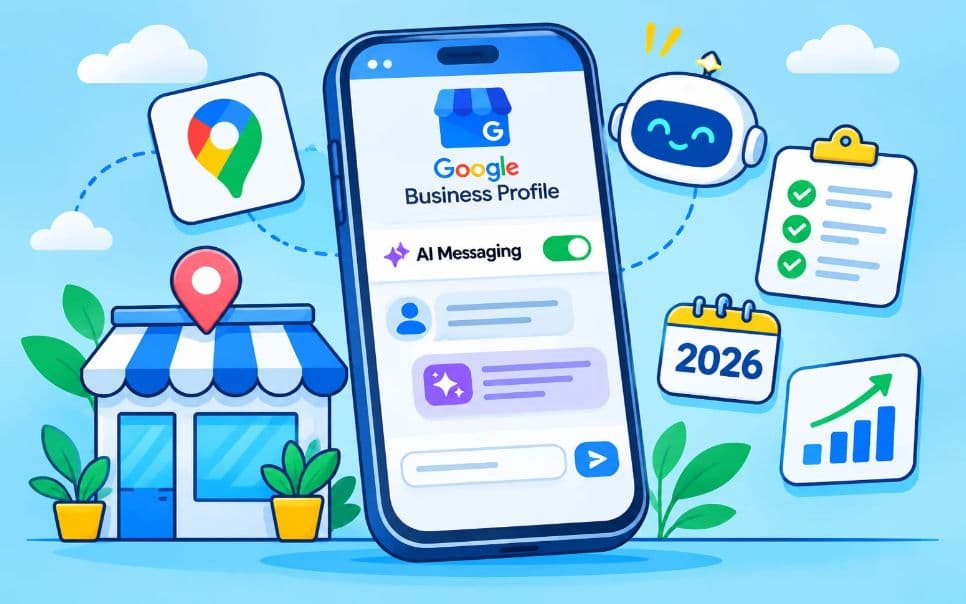
Google Business Profile AI messaging is a feature that places an AI agent between your customer and your team.
When a customer finds your business on Google Search or Maps and taps to message you, an AI agent responds first. It reads your Business Profile and answers routine questions (your hours, your services, your service area, and your pricing if listed) without anyone on your team needing to be online.
If the question requires a human, the AI escalates the conversation to your team. All messages, AI-handled and human-handled, appear in your Business Profile dashboard.
Once the feature is live, you can also track how many customers messaged you, what they asked, and how quickly conversations resolved.
The pilot was first spotted in June 2026. As of October 2026, Google is actively expanding it to more businesses. Search Engine Roundtable confirmed the expansion on October 29, 2026.
This guide covers:
1. Check whether you have access
2. Prepare your profile before enabling
3. Publish your privacy policy and terms of service pages
4. Complete the sign-up form
5. Review and accept the terms
6. Turn on AI-powered responses
7. Send test messages to find gaps
8. Monitor and manage your first real conversations
Step 1: Check Whether You Have Access
The feature is currently invite-only. Google has not opened it for self-registration.
There are two ways to check whether your profile has been selected.
Check your email
Look in the inbox connected to your Google Business Profile account. The email subject references early access to AI-powered messaging or the AI-powered messaging pilot. It comes from a google.com address.
If you manage multiple profiles, check the inbox for each account separately.
Check your Business Profile dashboard
Log into your Google Business Profile at business.google.com. Navigate to the Messages section.
If your profile has been selected, you will see a red dot on the Messages tab and a welcome screen when you open it. The welcome screen walks you through enabling the feature. You can also refer to Google's official activation guide for the most up-to-date steps.
If you do not see either, the feature has not reached your profile yet.
Tip: Check your dashboard weekly. Google is rolling the feature out in batches. The red dot appears without a separate notification in some cases.
Search Engine Roundtable confirmed that some owners received invitation emails around October 20, 2026, with limited tests dating back to June.
Step 2: Audit Your Business Profile Before You Enable Anything
This is the most important step in the guide. Most businesses skip it. That is why their AI gives customers wrong information.
The AI messaging agent does not have a knowledge base you train separately. It reads your Business Profile and answers from whatever is there. If your profile is incomplete or outdated, the AI produces incomplete or outdated answers.
Go through each section below before turning on the feature.
Business hours
Update your regular opening and closing times for every day of the week. Add your weekend hours explicitly. If you offer out-of-hours emergency services, add that to your business description; the AI will draw from it.
Add any upcoming holiday closures to your special hours. An AI that tells a customer you are open on a public holiday creates the worst possible first impression.
Service area
Your profile allows up to 20 service area entries. Use specific city names, districts, or pin codes, not broad regions.
Remove any areas you no longer serve. If a customer asks 'do you cover [area]?' and that area is on your old list but no longer active, the AI will confirm coverage you cannot deliver.
Services section
Write every service in plain customer language. Not 'SEO': write 'Monthly SEO audits, keyword strategy, and content optimisation.' Not 'digital marketing': write exactly what you offer.
The more specific your services section, the more accurately the AI can answer 'what do you offer?' and 'do you do [specific service]?'
Business description
Your description should cover who you serve, what you offer, and what makes your business different. Write it in one clear paragraph.
The AI draws on this when a customer asks a broad question like 'what does your company do?' or 'are you the right agency for me?'
Phone number and website
Confirm the phone number on your profile matches your website and any other directories where you are listed. A mismatch here confuses the AI and misleads customers.
Tip: Run a quick search for your business name on Google right now. Read your own listing as a customer would. If anything looks wrong or outdated, fix it before you enable the feature.
Step 3: Publish a Privacy Policy and Terms of Service Page on Your Website
This is a requirement most guides do not mention. The sign-up form asks for links to your privacy policy and your terms of service. If those pages do not exist on your website, you cannot complete the form.
If your website does not already have these pages, publish them before you do anything else in this process.
Your privacy policy should cover at minimum:
→ What customer data you collect
→ How you use it
→ Who you share it with
→ How customers can request data deletion
Your terms of service should cover how customers can engage with your business, what your refund or cancellation policy is, and any limitations on the services you provide.
Tip: If you do not have a legal team, tools like Termly or iubenda generate compliant privacy policy and terms pages in a few minutes. Publish them, then come back to this guide.
Step 4: Complete the Sign-Up Form
When you open the welcome screen in your Business Profile Messages section, Google walks you through a sign-up form.
Have the following ready before you start:
1. First and last name of the business contact who will manage messaging
2. A business email address you check regularly
3. Your website URL or social media profile link
4. The direct URL to your privacy policy page
5. The direct URL to your terms of service page
6. Your business registration number or EIN (Federal Employer Identification Number for US businesses)
The form asks for the EIN on the second screen, after the contact and website details. If you do not have this information to hand, the form will not let you proceed.
The EIN requirement and full sign-up form flow was first documented by Footbridge Media in their contractor guide to GBP AI messaging.
Indian businesses: at the time of writing, the pilot is US-first. If you manage profiles for US-registered clients or have a US entity, use that registration number. If you are based solely in India, check your dashboard for access as the rollout expands internationally.
Tip: Fill in the form in one sitting. Some users have reported that partially completed forms do not save progress. Have every detail ready before you open the form.
Step 5: Read the Terms Before You Accept
Google will ask you to agree to the RCS for Business terms before activating the feature. Read them before you tick the box.
Early access participants have noted that the RCS for Business terms include language around messages being shared with carriers for spam-detection training purposes. This is worth understanding before your customer conversations are live. Footbridge Media flagged this in their early pilot coverage.
A few things to look for in the terms:
→ What Google and carriers can do with the message data
→ Whether there is an opt-out process once the feature is enabled
→ Whether pricing applies after the pilot period ends
The pilot is currently described as free. Google has not announced pricing for a wider rollout. This is consistent with how Google handled its original Business Profile chat (free during testing, with premium features introduced later).
If managing all messages manually is a priority for your business, understand the opt-out options clearly before accepting.
Step 6: Turn On AI-Powered Responses
After you submit the form and accept the terms, your Business Profile Messages section will show the option to enable AI-powered responses. For the official walkthrough, see Google's activation guide for AI-powered messaging.
If the toggle is visible
Switch AI-powered responses on. The AI agent is now active. It will begin responding to incoming customer messages using the data from your Business Profile.
If the toggle is not yet visible
Your form has been submitted but approval is pending. Google reviews submissions before activating the AI on your profile. Early access participants report approval typically arrives within a few business days.
You will receive a notification when the AI is live on your profile.
Tip: Once the AI is active, you can step into any conversation at any point. Opening the conversation and typing a reply switches it from AI-handled to human-handled for that thread.
Step 7: Send Test Messages Before Going Live
Do this before any real customer sees the feature.
Ask someone outside your team to open your Google Business Profile on their phone and send a message. Use questions your customers actually ask.
Test these specifically:
→ 'What are your opening hours?'
→ 'Do you serve [specific area or city]?'
→ 'What services do you offer?'
→ 'How much do you charge for [your main service]?'
→ 'Are you available on weekends?'
Read every AI response. For each one, ask:
→ Is the answer factually correct?
→ Is the answer specific enough to actually help the customer?
→ Is anything missing that the customer would need to take the next step?
If an answer is wrong or vague, go back to your Business Profile and fix the specific field the AI is drawing from. Then test again.
The feedback loop is straightforward: AI gets it wrong, you fix the profile, AI improves. Run this loop before customers do it for you.
Tip: Test from both an RCS-compatible Android device and a standard SMS device if possible. The experience differs. On a non-RCS device, the message lands on your phone as a standard text, with no AI and no dashboard. Make sure your team is set up to respond to both.
Step 8: Set Up Your Team Handoff and Monitor Early Conversations
The AI handles the first layer. Your team handles the rest. This only works if the handoff is set up before you go live.
Assign a message owner
One person or one shared inbox needs to own incoming messages. This person monitors the Business Profile Messages dashboard, picks up conversations the AI escalates, and responds within your target time.
If no one owns this, escalated conversations sit unanswered. That is worse than having no messaging feature at all.
Define what always goes to a human
Before the AI goes live, agree internally on which question types your team always handles:
→ Custom project scoping and quotes
→ Complaints or refund requests
→ Sensitive client information
→ Bookings that require confirming real-time availability
→ Medical, legal, or financial consultations
The AI will escalate these naturally when it cannot answer. But knowing your own categories in advance helps your team respond faster.
Review the first 20 to 30 conversations
Once real customers are messaging you, review the first 20 to 30 AI-handled conversations in your dashboard.
Look for:
→ Questions the AI answered incorrectly: fix the profile field it pulled from
→ Questions the AI could not answer: add the missing information to your profile or description
→ Conversations that escalated to your team unnecessarily: if the AI should have handled it, add more detail to the relevant profile section
Treat the first month as a calibration period. The profile updates you make in that window pay dividends across every future conversation.
What to Track After You Enable AI Messaging
Your Business Profile Messages dashboard gives you visibility into how the feature is performing. These are the metrics worth monitoring.
|
Metric |
What It Shows |
What to Do With It |
|
Total messages received |
Volume of incoming customer conversations |
Benchmark month-on-month to track feature adoption |
|
AI-handled vs. escalated |
How many conversations the AI resolved vs. handed off |
High escalation rate = profile gaps. Fix them. |
|
Response time |
Average time from message to first response |
Should improve as the AI takes first contact. If not, check your handoff process. |
|
Common question topics |
Recurring questions customers are asking |
Add direct answers to your profile and FAQ section on your website |
|
Conversation outcomes |
Whether chats converted to calls, bookings, or visits |
Tracks business impact of messaging beyond just reply volume |
One thing I tell every client: the AI messaging feature is not a reason to stop monitoring messages. It is a reason to monitor them more carefully. The AI is a first responder, not a replacement.
Does Enabling AI Messaging Affect Your Google Maps Ranking?
Google has not confirmed that turning on AI messaging directly affects local search rankings.
But the indirect connection is worth understanding.
BirdEye's State of Google Business Profile report found that verified, complete profiles generate up to 4x more website visits and meaningful increases in calls and direction requests compared to thin or outdated profiles.
What the AI messaging feature does is raise the accuracy bar your profile needs to meet. A profile that is good enough to rank is not necessarily good enough for an AI to represent you accurately in a conversation.
The two are linked. Preparing your profile for AI messaging produces a better profile overall. That benefits your visibility: in Search, in Maps, and in AI-generated responses.
Frequently Asked Questions
1. Is the Google Business Profile AI messaging feature free?
Yes, during the pilot phase. Google has not announced pricing for a wider rollout. The original Business Profile chat was also free during testing. Watch for terms changes if you are on a paid Google Business subscription.
2. I manage multiple Business Profiles. Do I need to enable this separately for each one?
Yes. The invitation is per-profile, not per-account. Check each profile's Messages dashboard separately. Submit the sign-up form for each profile you want to enable. The EIN and privacy policy details you enter can be the same across profiles owned by the same business.
3. What if my profile has a hidden address? Am I eligible?
Early reports show the pilot has prioritised restaurant and vehicle-service businesses with physical locations. Service-area businesses with hidden addresses are expected to follow, but eligibility is not yet confirmed. Keep your profile complete and check your dashboard regularly.
4. What happens to customers who message me on a non-RCS phone?
Their message arrives on your phone as a standard SMS. Standard carrier rates may apply. The AI agent is not involved for non-RCS customers; the message goes directly to your team. This is why your handoff process (Step 8) matters for all customers, not just the ones the AI handles.
5. Can I turn off the AI and go back to manual messaging?
You can step into any conversation at any time. Whether you can fully disable the AI depends on the controls Google makes available, which may change as the pilot expands. Before accepting the terms (Step 5), check the opt-out options explicitly.
6. How long does profile approval take after I submit the form?
Early access participants report that approval typically takes a few business days after the form is submitted. You will receive a notification when the AI is activated on your profile. If you have not heard back after five business days, check your Business Profile dashboard directly.
Sources
→ Google Support: How to Activate AI-Powered Messaging on Your Google Business Profile (Official)
→ Search Engine Roundtable : Google Business Profiles AI-Powered Messaging Expands (October 29, 2026)
→ BirdEye : State of Google Business Profile Report (2025)
→ Built Right Digital : Google Business Profile Messaging Returns With AI (November 2026)
→ The Social Shepherd : Google's AI Now Replies to Business Profile Messages (2026)