What is ChatGPT Business Hub?
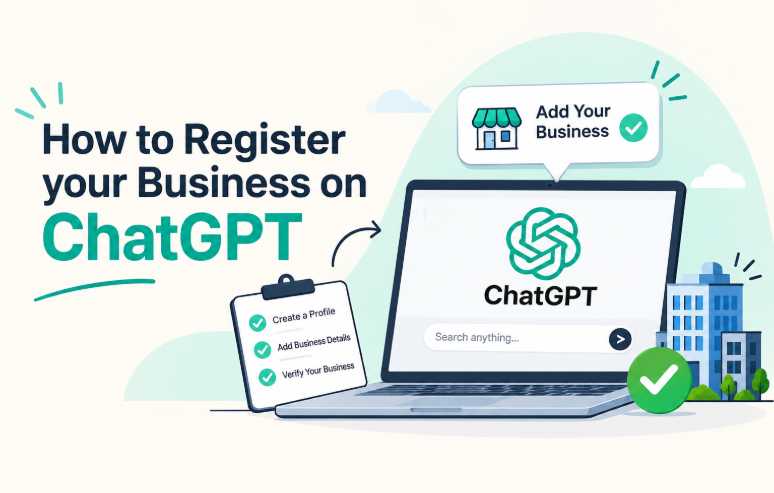
OpenAI has launched chatgpt.com/business-hub an official portal where businesses can claim their presence on ChatGPT. Once verified and approved, you can track how often ChatGPT mentions your business, monitor clicks to your website, add your products, and manage how your business appears in AI responses. This guide by Bee Online walks you through every step of the registration process — with real screenshots.
Simple Steps in this guide
-
Search your business name
-
Choose your business type
-
Add your website URL
-
Verify website ownership (DNS TXT record)
-
Verify your identity (Government ID)
-
Add contact information
-
Application in review — Done!
-
After approval: Track mentions & clicks
-
Add your products
Step 1 - Go to chatgpt.com/business-hub
Open your browser and navigate directly to chatgpt.com/business-hub. This is OpenAI's official portal where you can register and claim your business presence on ChatGPT.
The page is titled "Reach new customers and grow your business with ChatGPT" — it allows you to claim an existing listing or create a new one for your business.
Tip: Sign in to your OpenAI / ChatGPT account first before visiting this URL to avoid interruptions during the registration flow.
Screenshot: Navigate to chatgpt.com/business-hub
Step 2 - Search Your Business Name
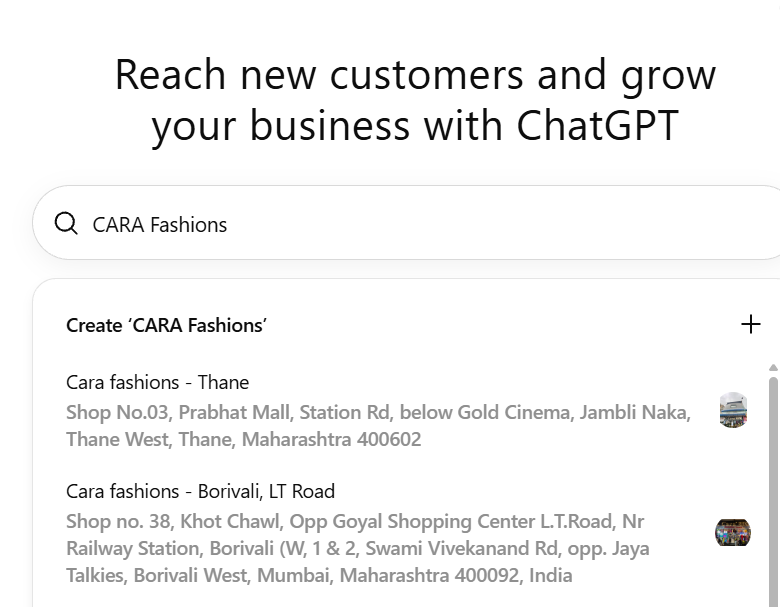
The landing page shows a search bar under "Reach new customers and grow your business with ChatGPT." Type your business name in the search box.
Two scenarios can happen:
-
Your business is already listed — ChatGPT has already indexed your business from the web. Click on it to claim the existing profile.
-
Your business is not listed — Click the "+" button next to "Create '[your business name]'" to create a new listing from scratch.
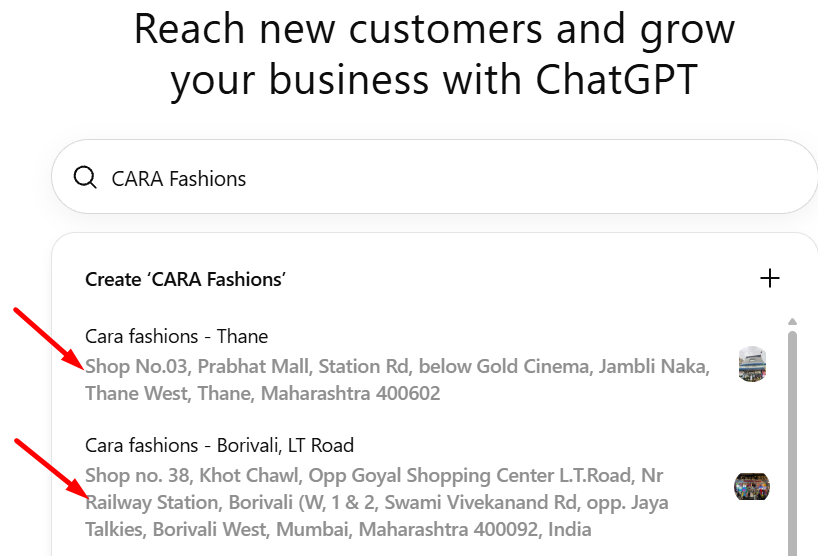
If not listed: click the + to create
If listed: click to claim your profile
Already indexed? ChatGPT may have already created a listing for your business based on your website, Google Business Profile, or other web sources. If it appears in the search results, claim it rather than creating a duplicate.
Step 3 - Choose Your Business Type
ChatGPT asks: "How do customers usually interact with [your business]?" Select the option that best describes your business model:
-
At a physical location — if customers visit a store, restaurant, office, or other location
-
Through a website — if customers buy from your website or online marketplace
Screenshot: Choose how customers interact with your business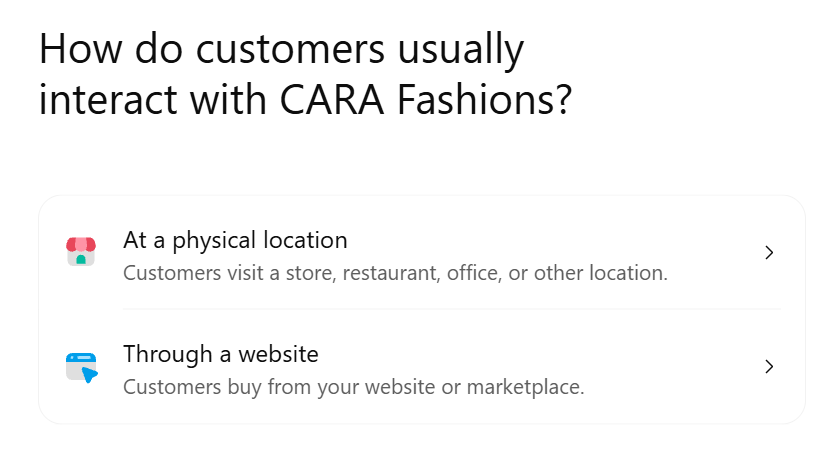
Service businesses: If you're a service-based business (agency, consultancy, freelancer) that operates online, choose "Through a website" — this is the best fit even if you're not selling physical products.
Step 4 - Add Your Business Website URL
Enter your business website URL in the "Add your business website" field. Use your primary domain — the main website that represents your business.
This URL is what ChatGPT will associate with your business in its responses and what users will click through to when they find your business via ChatGPT.
Screenshot: Enter your business website URL
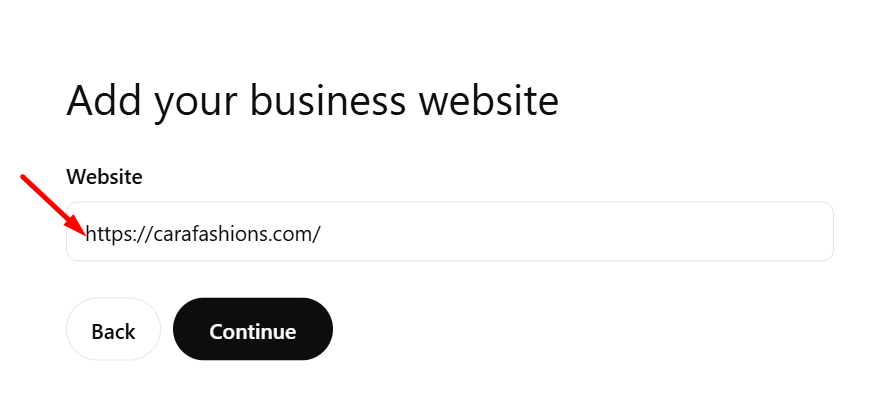
Use your root domain — enter it without trailing slashes (e.g. beeonline.co.in not beeonline.co.in/services/). This ensures ChatGPT correctly attributes your entire website.
Step 5 - Verify That You Own the Website
OpenAI requires you to prove that you own or control the website you entered. This is done by adding a DNS TXT record to your domain — the same method used by Google Search Console.
ChatGPT will give you:
-
Type: TXT
-
Name or host: openai-business-profile.[unique-token]
-
Value or content: A unique verification string (blurred in screenshot for security)
Add this TXT record in your domain's DNS settings (via your hosting provider, Cloudflare, GoDaddy, etc.), then come back and click Verify.
Screenshot: DNS TXT record for website verification (sensitive values blurred)
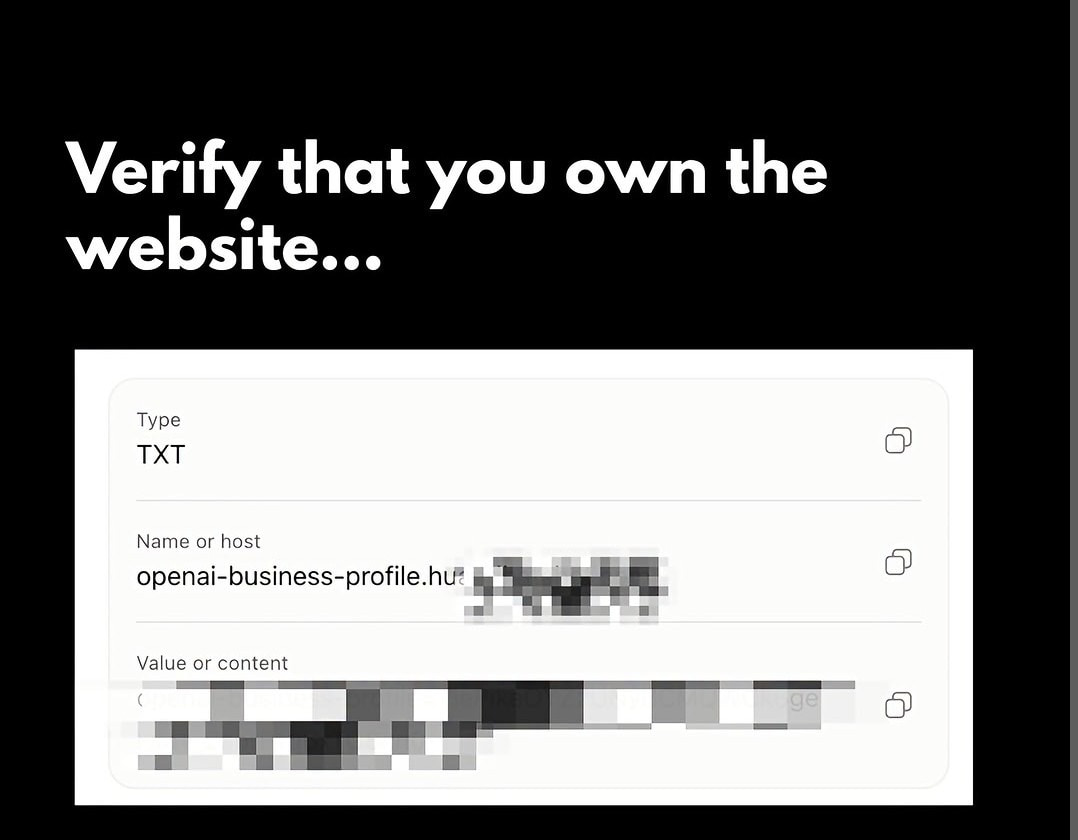
DNS propagation can take up to 48 hours, but typically completes within 15–30 minutes. If verification fails, wait a few minutes and try again. You can use dnschecker.org to confirm the TXT record is live before clicking Verify.
Step 6 - Verify Your Identity with a Government ID
This is the step most people skip — but it's required to keep the Business Hub secure and to prevent fraudulent business claims. OpenAI asks you to verify your identity with a government-issued ID before you can fully edit or manage your business profile.
This may involve uploading a scan of a passport, national ID card, or driver's licence through OpenAI's secure identity verification flow.
Screenshot: Identity verification with a government-issued ID
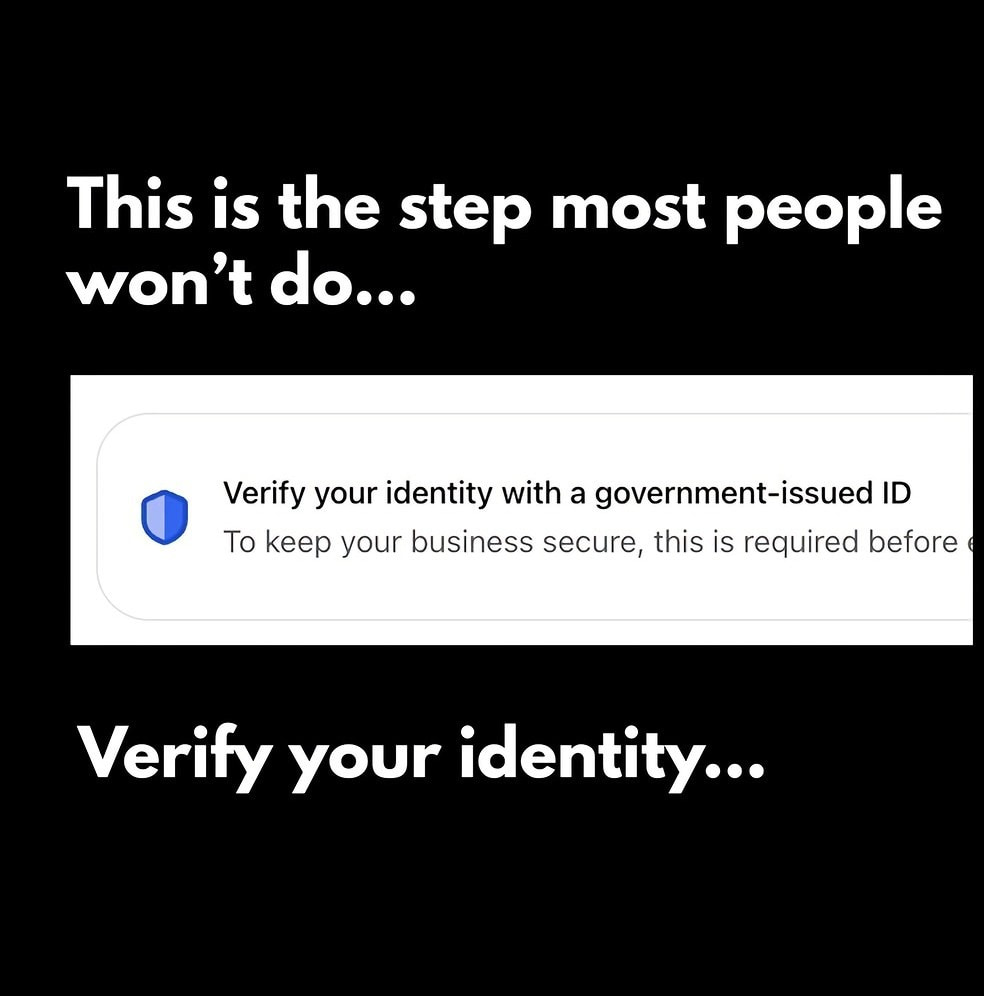
Why this matters: This step ensures only legitimate business owners can claim and edit a business profile on ChatGPT. It prevents competitors from hijacking your listing. Don't skip it — it's what gives your profile full credibility with OpenAI.
Step 7 - Add Your Contact Information
ChatGPT asks you to add your business contact details so customers can get in touch: "Help customers get in touch by including your contact information."
Both fields are optional, but adding them helps ChatGPT surface accurate contact information when users ask for ways to reach your business:
-
Phone number (optional) — include your country code
-
Email (optional) — use a business email, not a personal Gmail
Screenshot: Add phone number and email for customer contact
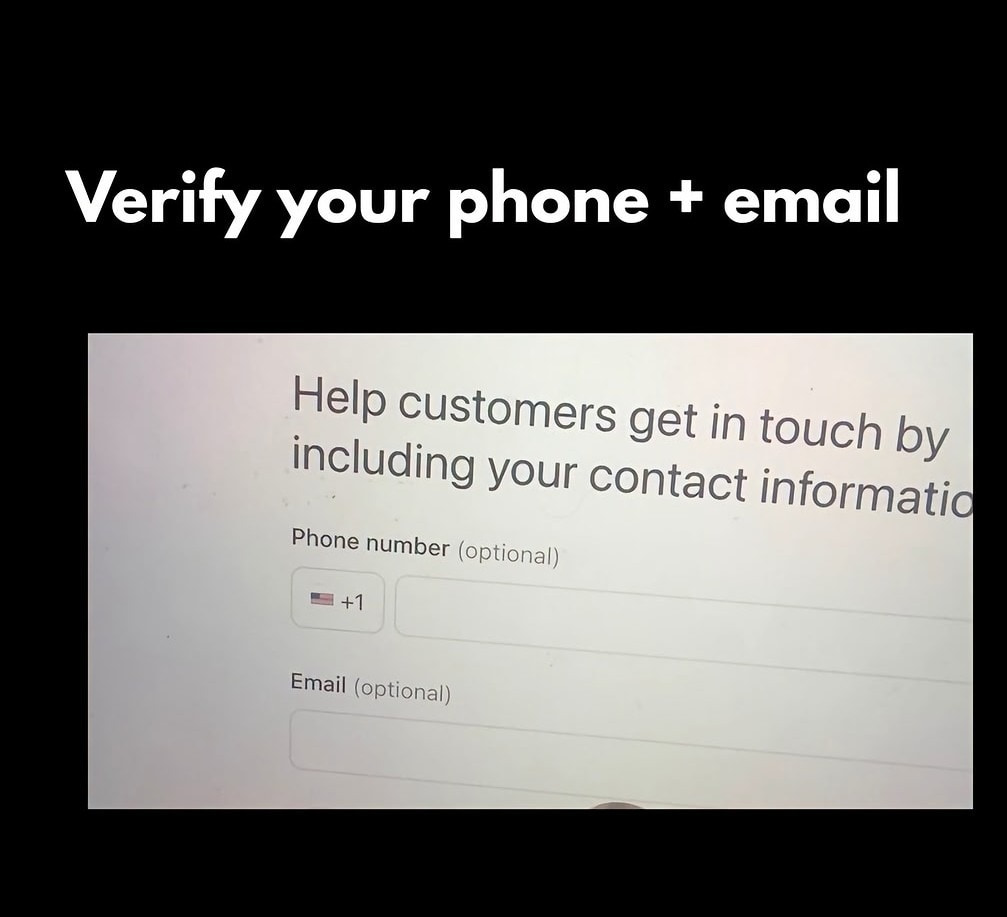
Use your business email and phone. These will appear when users ask ChatGPT "how do I contact [your business]?" — make sure they match what's on your website and Google Business Profile for consistency.
Step 8 - Application in Review - You're Done!
After completing all the steps above, you'll see the "Application in review" confirmation screen. This means your application has been successfully submitted to OpenAI for review.
The screen reads: "Status updates will appear in your organization settings over the next few days. Thank you for your patience."
Screenshot - "Application in review" - submission confirmed
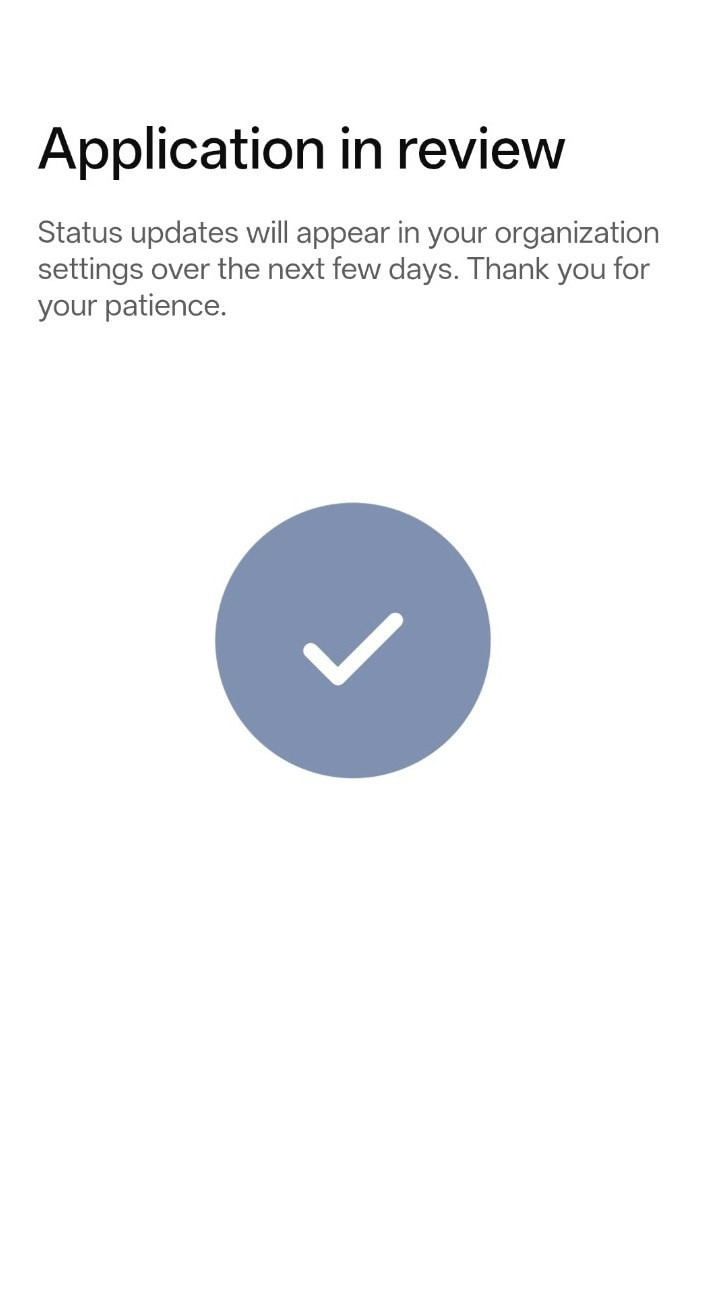
After Approval Track Your Mentions & Website Clicks
Once OpenAI approves your application (typically within a few days), your Business Hub dashboard activates. You'll start seeing data about how your business appears in ChatGPT conversations.
Your dashboard will show two key metrics:
-
Mentions — how often ChatGPT mentions your business in responses to users
-
Website clicks — how many users click through to your website directly from ChatGPT
Screenshot After approval: Your Mentions and Website clicks start populating
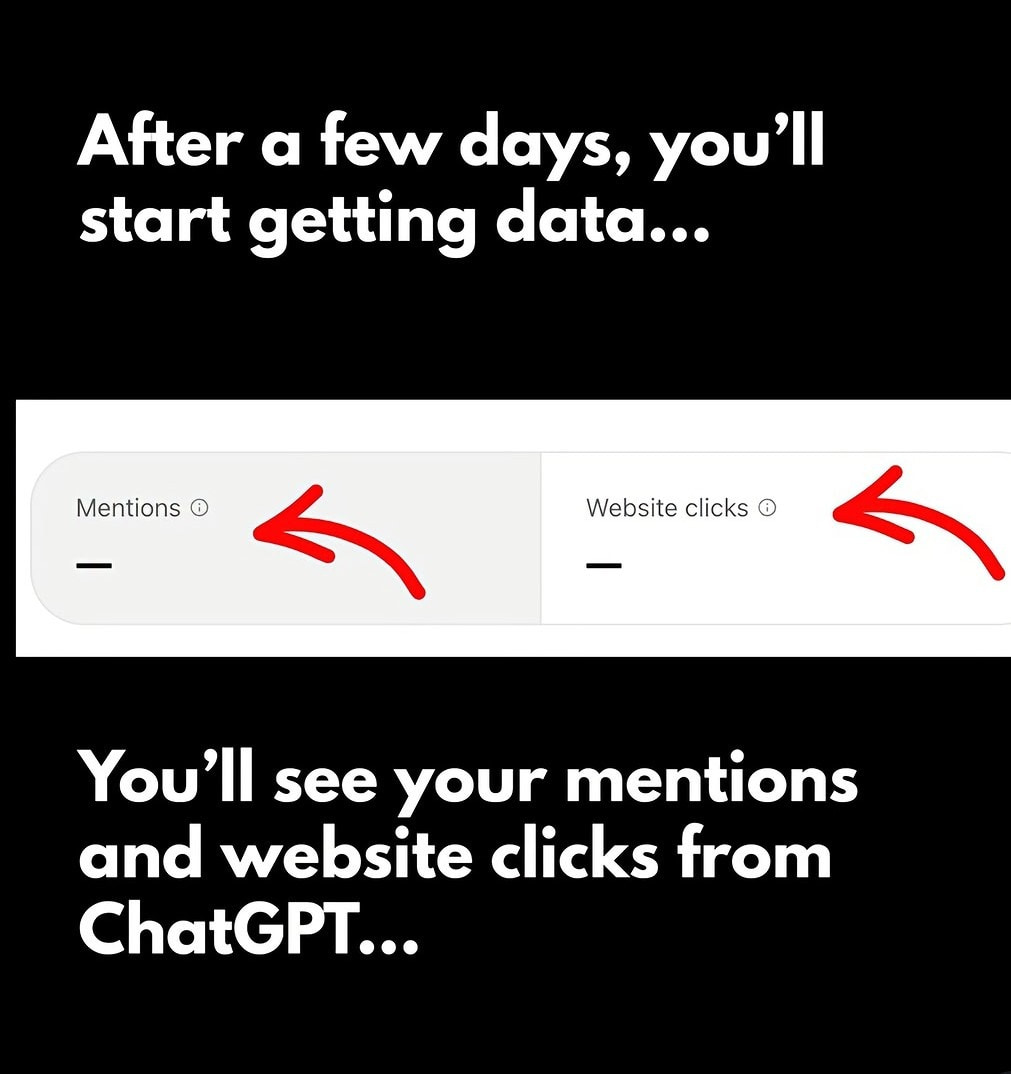
Think of this as your ChatGPT Search Console. Just like Google Search Console shows clicks and impressions from Google Search, ChatGPT Business Hub shows mentions and clicks from ChatGPT — giving you direct visibility into your AI search performance for the first time.
FAQs On How to Register Your Business on ChatGPT
1. Is registering on ChatGPT Business Hub free?
Yes — the registration and business claim process at chatgpt.com/business-hub is completely free. You do not need a ChatGPT Plus, Team, or Enterprise subscription to apply. Some advanced features after approval may require a paid plan.
2. How long does the review take after I submit?
OpenAI states that status updates will appear "over the next few days." In practice, reviews typically complete within 2–5 business days. Check your status under ChatGPT → Profile → Settings → Organization — not necessarily via email.
3. What if my business doesn't appear in the search results?
If your business doesn't show up when you type your name, click the "+" button next to "Create '[your business name]'" to create a new listing from scratch. ChatGPT has already indexed many businesses from the web — but newer or less prominent businesses may not be listed yet.
4. What is the DNS TXT record step and is it required?
If your business doesn't show up when you type your name, click the "+" button next to "Create '[your business name]'" to create a new listing from scratch. ChatGPT has already indexed many businesses from the web — but newer or less prominent businesses may not be listed yet.
5. I'm a service business, not a product seller — can I still register?
Yes. Any business can register regardless of whether you sell products or services. For business type, choose "Through a website." The product catalogue feature is currently for product-based businesses; OpenAI has confirmed that services support is "coming soon." You can still register now and track your mentions and website clicks immediately after approval.